Check my candidature status
You can access your candidature details through my.unimelb.
Check your supervisors, scholarship details, key milestone dates including expected thesis submission date, and other candidature details on the landing page when you log into my.unimelb (SSO login required).
This will direct you to the Graduate Research Student Admin Dashboard.
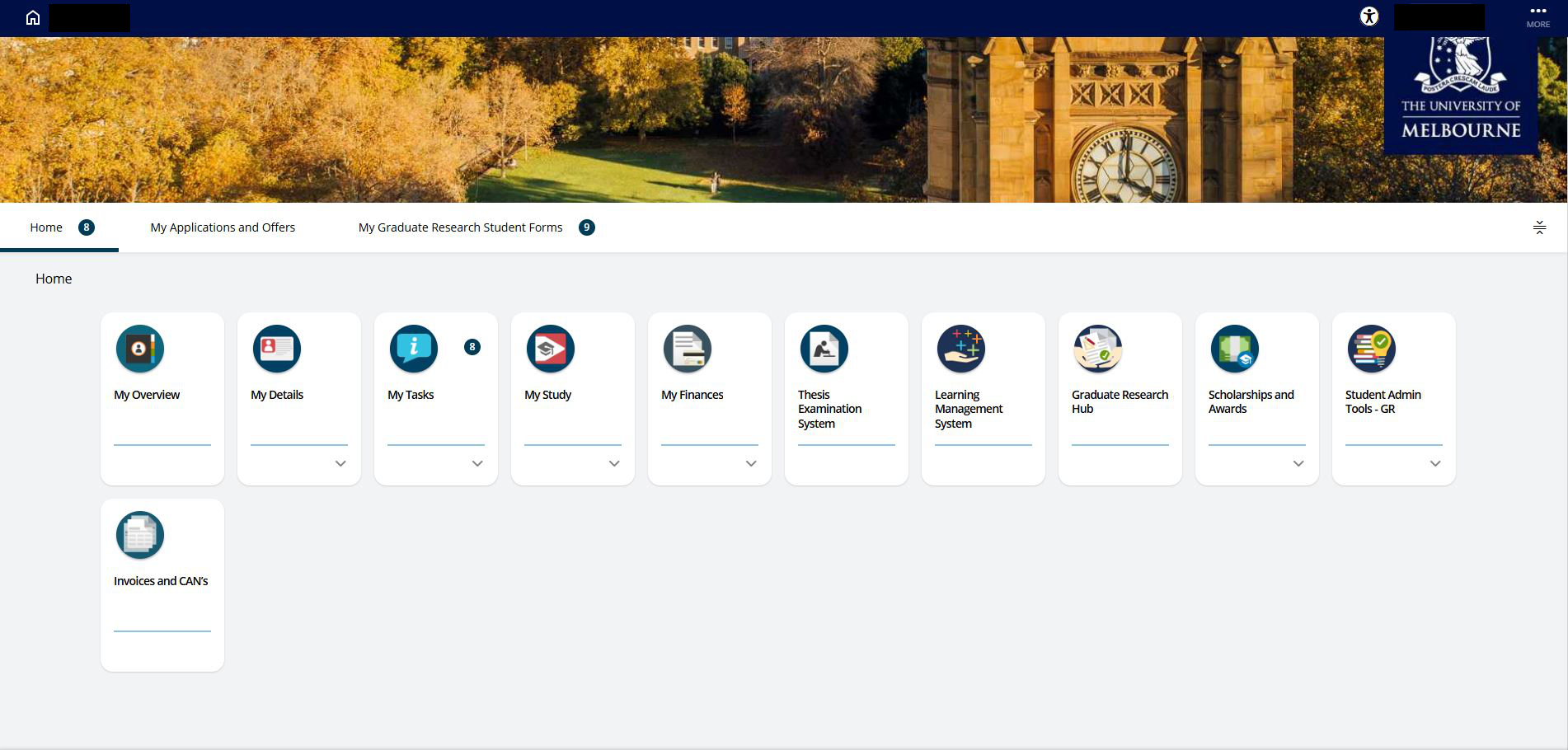
From there, select the ‘Home’ to access the Main Home page.
You will see a series of tiles, which you can use to complete administrative tasks.
My Overview
Access My Overview to check your administrative details. While you cannot edit your details directly here, you can download or print an overview of your student information, as needed.
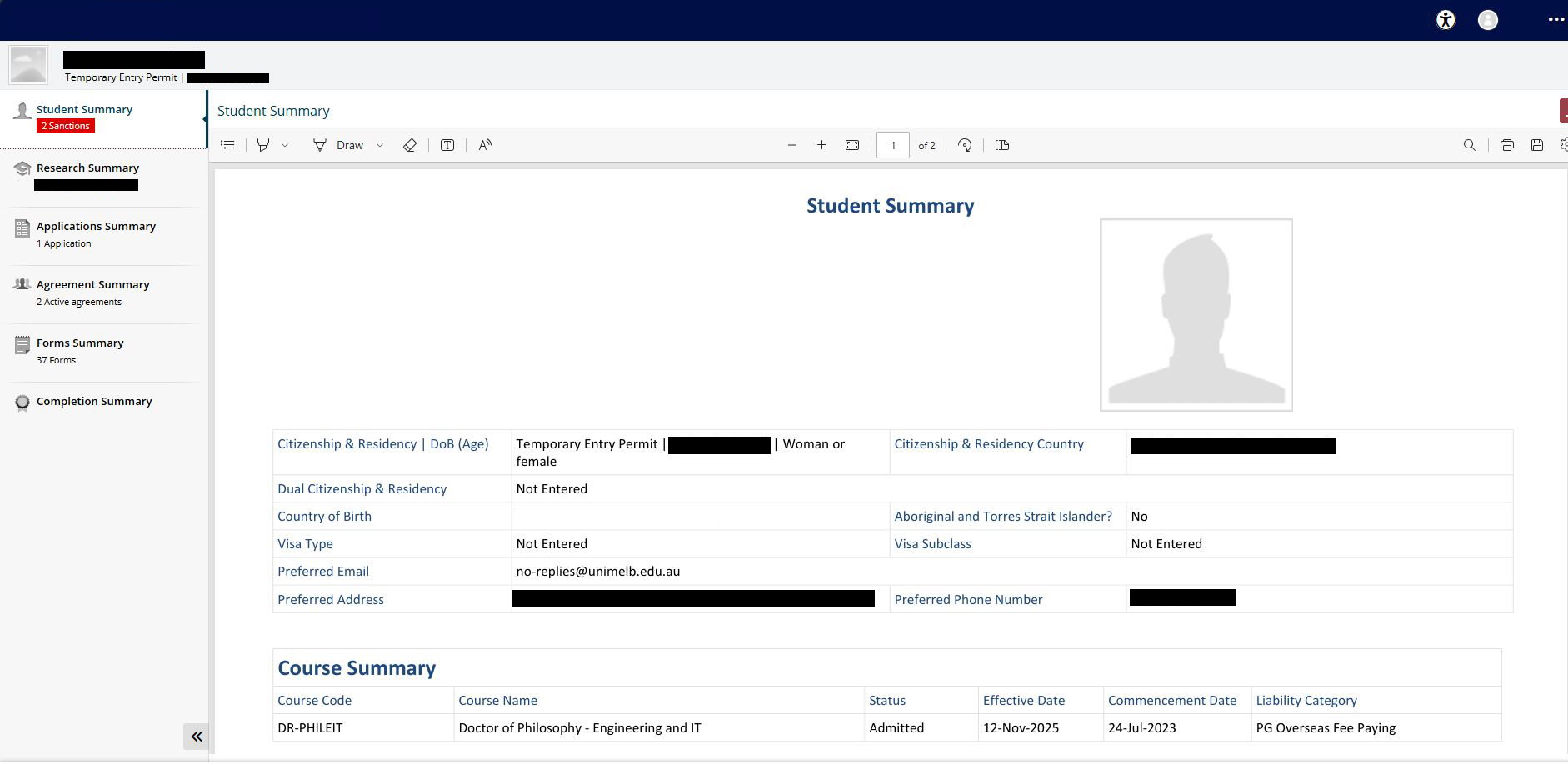
From this part of the portal, you can access the following tabs:
- Student summary: for your student ID and personal details.
- Coursework summary: if you are enrolled in coursework subjects, their details will appear here. If you don’t have any coursework subject enroments, this will be blank.
- Research summary: for current candidature details such as your expected thesis submission date, supervisors, thesis title, Fields of Research, study rate and stage of candidature (Equivalent Full Time Student Load (EFTSL) consumption details).
- Applications summary: view your applications for study.
- Financial summary: see your fees, access payment information, and request financial statements.
- Agreement summary: check and manage graduate research milestone dates, progress review dates and outcomes, and other GR activity, such as ‘Study Away’ dates.
- Forms summary: access forms you have previously submitted. You will also see who “in progress” forms are currently with.
- Completion summary: view other courses of study you have completed at the University of Melbourne, if applicable.
My Tasks
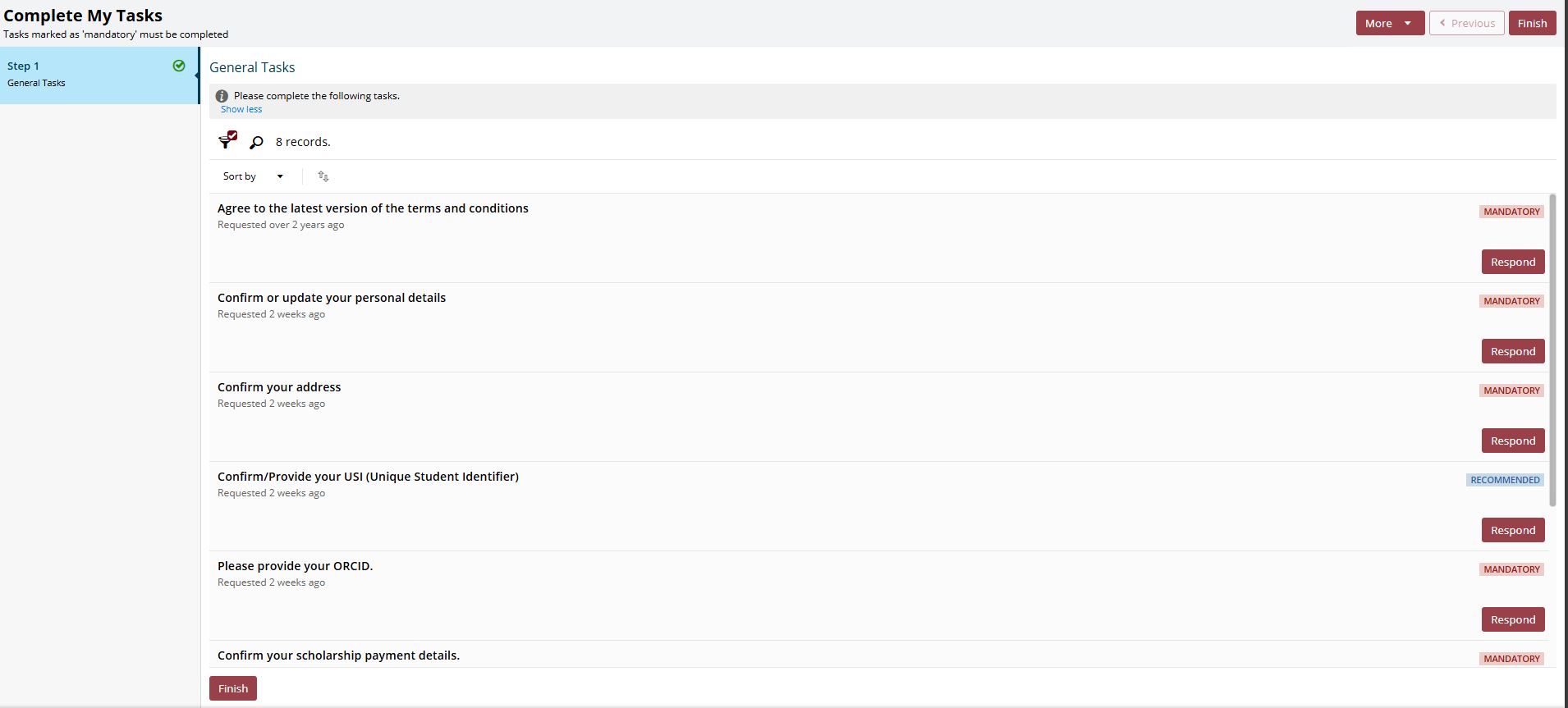
Access this tile to complete administrative tasks that need to be completed as part of enrolment. You will find both mandatory and recommended tasks outlined in this section.
My Details
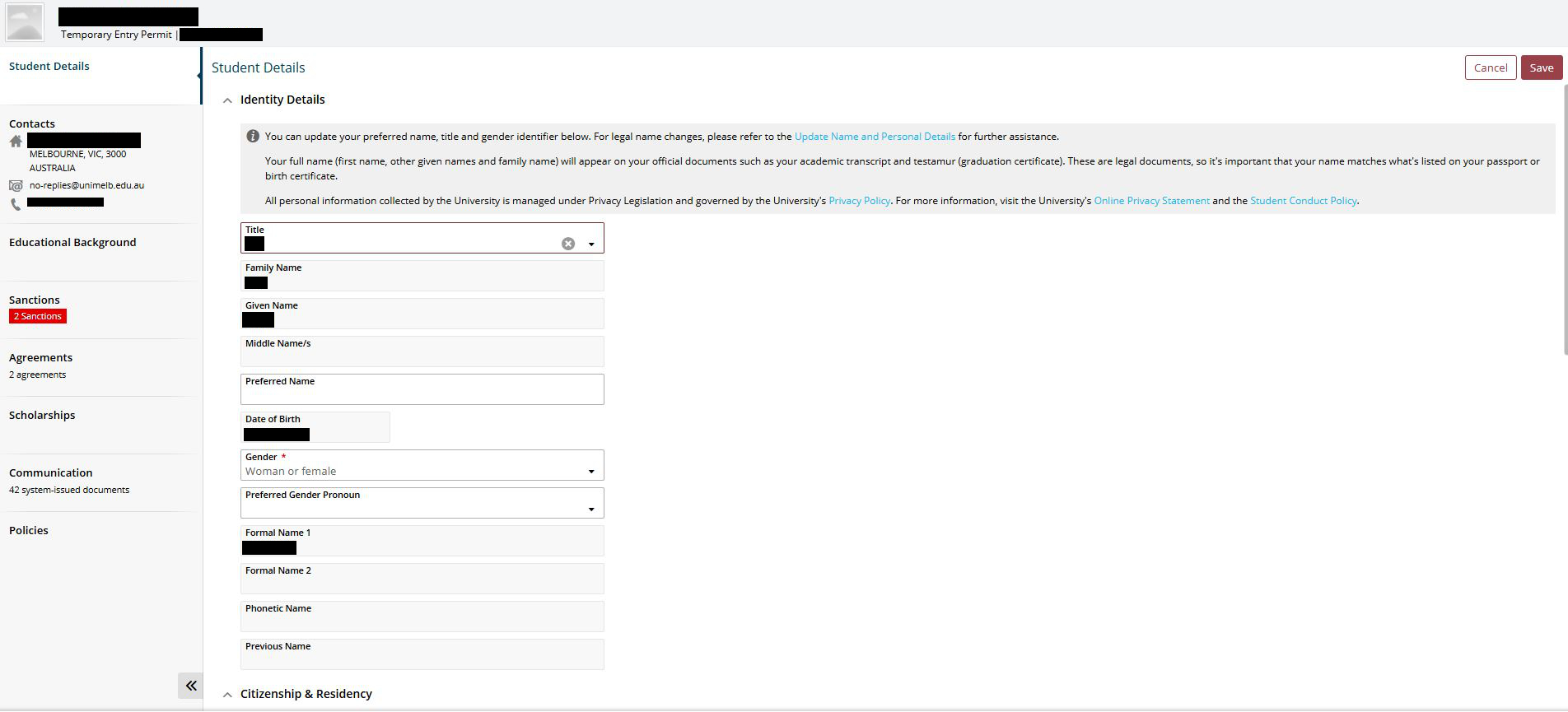
Use this tile to view and edit your personal details, and view other details such as:
- Your address and contact details
- Any Sanctions currently outstanding for you
- When you last signed the University enrolment terms and conditions (under Policies)
- Bestowed scholarship status
- Agreements and progress reviews.
My Finances
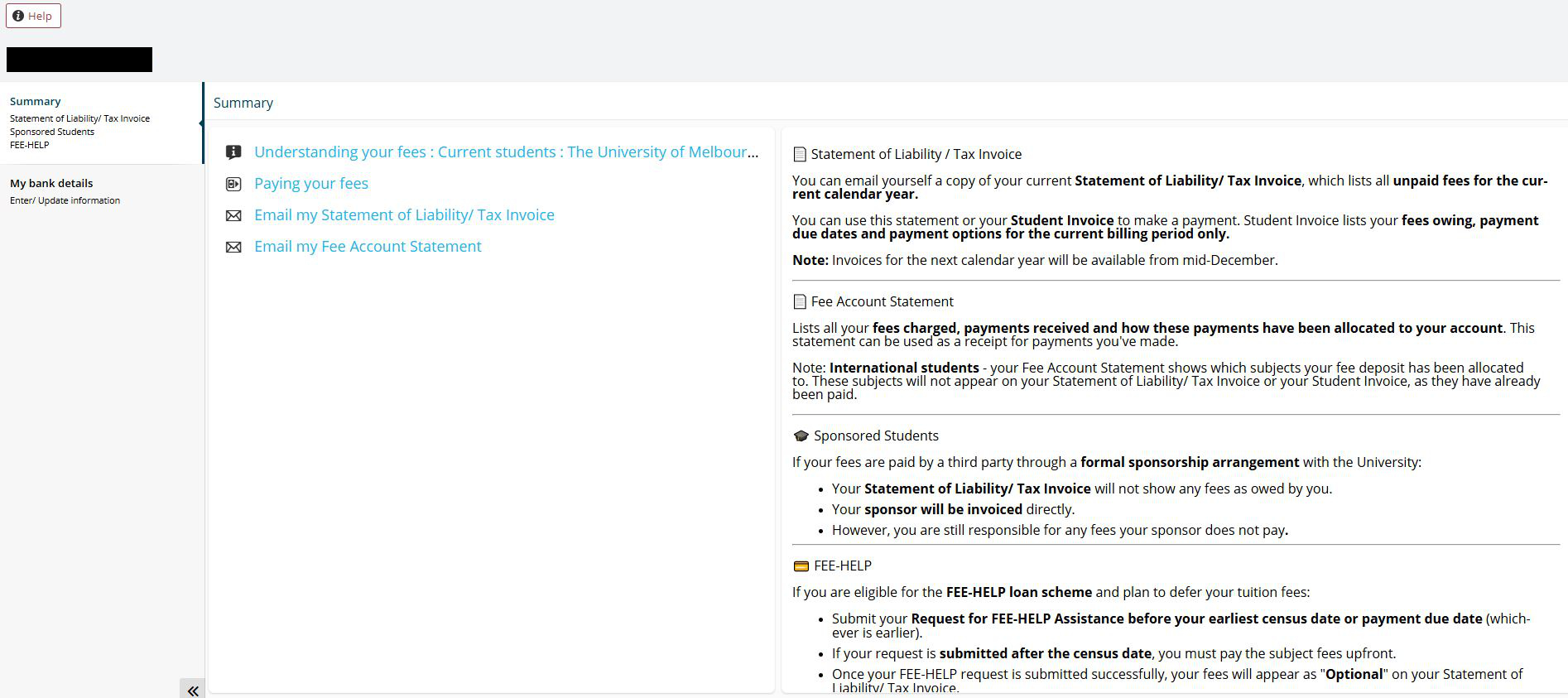
Use this section to view outstanding fees and payment plans, update your bank details and access resources on paying fees.
My Study
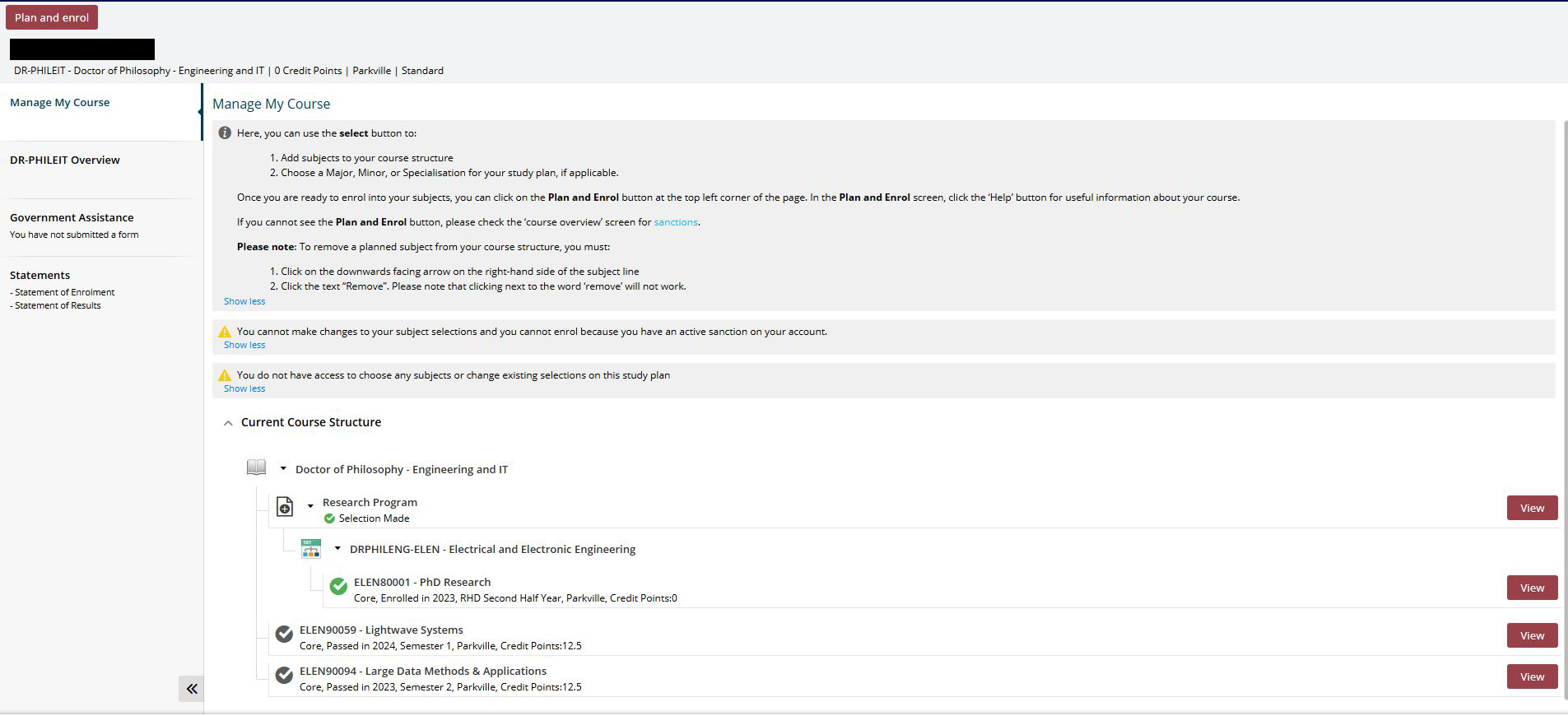
Use this tile to review your course completion, statement of enrolment and results and complete your graduation information.
Scholarships and Awards
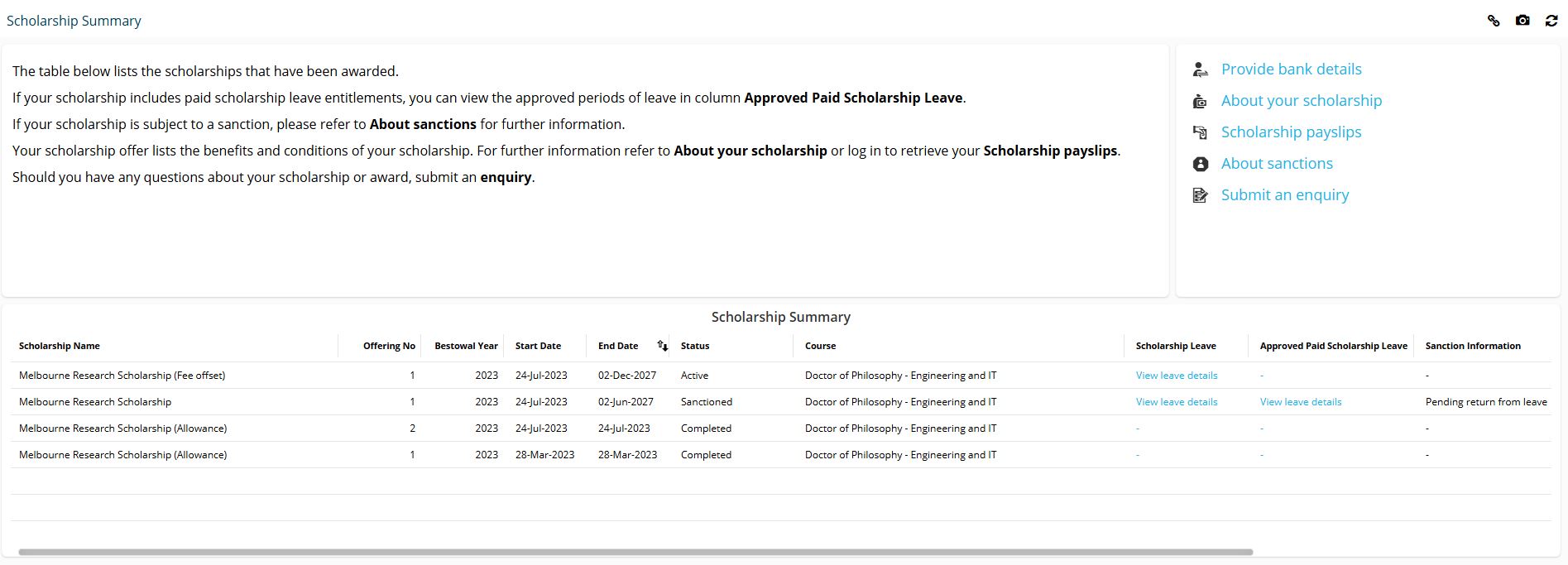
Use this section to:
- Check the status of your scholarship
- View your scholarship leave details
- Check sanction information
- Check paid leave details (if relevant).
Forms summary
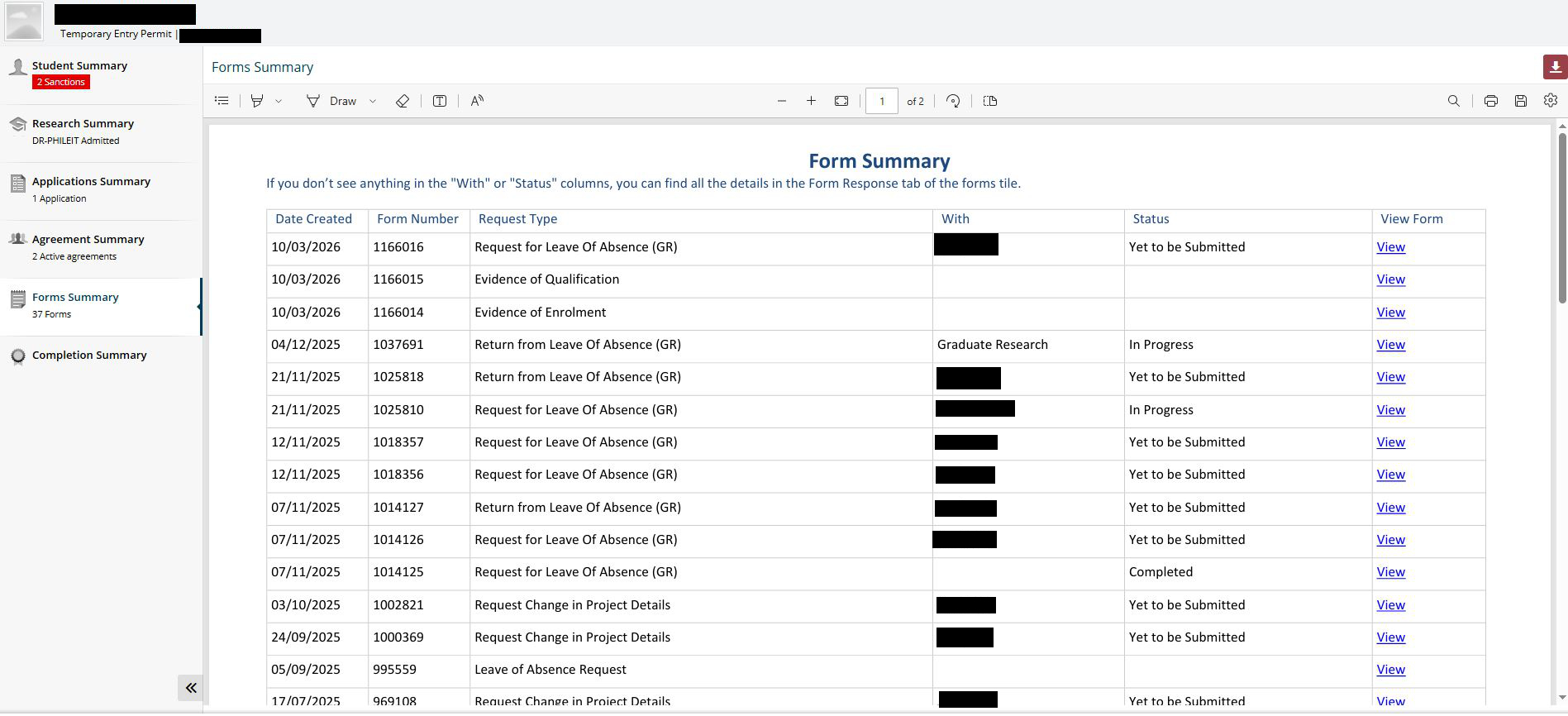
Select the ‘Forms’ tab to access the main ‘forms’ page.
From here, you can:
- Submit a form
- Complete a form, if the form has the status of ‘Draft’ or ‘Yet to be submitted’
- View the status of a form
- View previously completed and submitted forms.
You can use the search bar to locate a specific form.
You can also directly access to the Forms tile without having to navigate through from the GR Admin Dashboard.
Some forms cannot be cancelled by you once they have been submitted or created. Discover how to cancel a form.
You may experience difficulties or delays when attempting to upload large files.
If you need to attach files larger than 30MB or have slow upload speeds. please consider saving your files to your Microsoft 365 OneDrive.
Use the "Add URL" function to share the link to your OneDrive file(s). To find out more about OneDrive please visit the Student IT tutorials.